Completion-Based API Task
A Completion-Based API Task lets your own backend decide whether a user has completed a quest task — instead of relying on one of TaskOn’s built-in checks (Twitter, Discord, on-chain balance, and so on). TaskOn calls a URL you provide, you answer true or false, and TaskOn takes it from there.
Use this whenever the thing you want to verify only exists in your own system — a signup you tracked, an interaction only your app knows about, an on-chain action TaskOn doesn’t have a built-in check for yet.
When should I use this?
Reach for a Completion-Based API Task whenever TaskOn’s built-in task types can’t check what you need:
- On-chain actions TaskOn doesn’t support yet — a swap on your own DEX, a call to your own contract, staking in your protocol. You already know how to check this on-chain; just expose it as an API and let TaskOn call it. Identify users by wallet address.
- Dapp registration — confirm a user signed up on your app. If your app registers users by email, identify them by the email on their linked social account instead of a wallet.
- Dapp interaction — confirm a user did something specific in your app, like finishing a level or booking a demo. Identify users however your app already recognizes them (email, Discord ID, wallet, etc.).
- Anything else — if what you need to check doesn’t map to a wallet address or a social account (for example, a purely internal ID), this task type can’t identify users by a custom field. TaskOn’s Performance-Based API Task supports a Customized Data identifier for that case.
If you just want to send users to an external page with no pass/fail check, use a plain Link Task instead — this task type is specifically for tasks that need a real verification result.
How it works
That’s the whole contract on your side: one GET request in, one JSON verdict out. The rest of this guide is about getting that request and response right.
Binding happens automatically — you don’t build any of it. If the user hasn’t yet connected the wallet or social account you configured, TaskOn’s button reads “Link & Verify” instead of just “Verify”: clicking it walks them through connecting/authorizing first, then immediately runs the verification call against your API in the same click. You never see an unlinked user — by the time your endpoint is called, TaskOn has already resolved a real address or account for them.
If a user has bound more than one wallet on the chain you configured, TaskOn calls your endpoint once per address (stopping as soon as one comes back
true). Your endpoint should be safe to call more than once for the same user.
Supported user identifiers
Pick one identifier type when you set up the task.
Social media account
| Type | Example value sent to your API | Notes |
|---|---|---|
| X (Twitter) handle | taskonxyz | Sent as the handle, not a numeric ID |
| Discord ID | 1084460817220641111 | Numeric Discord user ID |
| Telegram ID | 6881505111 | Numeric Telegram user ID |
[email protected] | The email on the user’s linked social account | |
| FSL ID | (the user’s FSL account username) | Sent as the FSL username |
Wallet address
Pick one chain when you set up the task. TaskOn sends whichever address the user has bound for that chain:
EVM, Solana, Starknet, SUI, Tron, BTC, Aptos, Nibiru, Ton, Kaspa
This list reflects what TaskOn supports today — check the network dropdown in your dashboard for the current options, since new chains get added over time. EVM addresses are lowercased before TaskOn sends them; addresses on other chains are sent exactly as bound.
Build your verification endpoint
Requirements
- Public HTTPS URL — TaskOn’s servers must be able to reach it directly.
- Accepts
GET— TaskOn never sends a request body. - Responds within 10 seconds — slower than that is treated as a failure.
- Always returns HTTP
200— even for a “not completed” answer. Any other status code is treated as your endpoint being unavailable. - Returns the exact JSON shape below.
- No automatic retries — TaskOn makes one attempt per click. If that attempt times out or errors, the user sees a failed verification and has to click Verify again themselves; TaskOn won’t silently retry in the background.
Request
GET https://your-api.example.com/verify?address=<identifier>| Query param | When it’s sent | Description |
|---|---|---|
address | Always | The user’s identifier — a wallet address or social account value from the table above |
network | Only while you’re testing the connection in the TaskOn dashboard | The chain type (e.g. evm, solana) for wallet-based tasks |
Heads up:
networkis only included during the setup/test step in your dashboard. When a real user clicks Verify, TaskOn sendsaddressalone — nonetworkparam. If you support more than one chain on the same endpoint, your code needs to tell addresses apart by their format (an EVM address and a Solana address never look alike), since it won’t be told which chain a given request is for.
If you turned on the Bearer Token option, TaskOn adds it as a standard header:
Authorization: Bearer <your-token>
User-Agent: TaskOn-Server
Response
{
  "result": {
    "isValid": true
  }
}
isValid: true— the user has completed the taskisValid: false— the user hasn’t (yet)- Always respond with HTTP
200, even whenisValidisfalse
Two easy ways to accidentally fail this:
- Don’t omit
resultor send"result": nullfor a “not completed” answer — always send{"result": {"isValid": false}}. TaskOn treats a missing/nullresultas your endpoint being broken, not as a clean “false”.isValidmust be a real JSON boolean (true/false), not the string"true"/"false". Some frameworks and no-code backends stringify booleans by default — double-check what actually goes over the wire.
Minimal example (Node.js / Express)
const express = require("express");
const app = express();

app.get("/verify", (req, res) => {
  const { address } = req.query;

  // Optional: enforce the Bearer Token you configured in TaskOn
  const auth = req.headers.authorization;
  if (auth !== `Bearer ${process.env.TASKON_ACCESS_TOKEN}`) {
    return res.status(401).json({ result: { isValid: false } });
  }

  // TODO: replace with your own lookup
  const isValid = hasUserCompletedTask(address);

  res.json({ result: { isValid } });
});

app.listen(3000);
Don’t have a backend to attach this to yet? TaskOn publishes a deployable demo project with a one-click Vercel deploy as a starting point.
Configure the task in your TaskOn dashboard
-
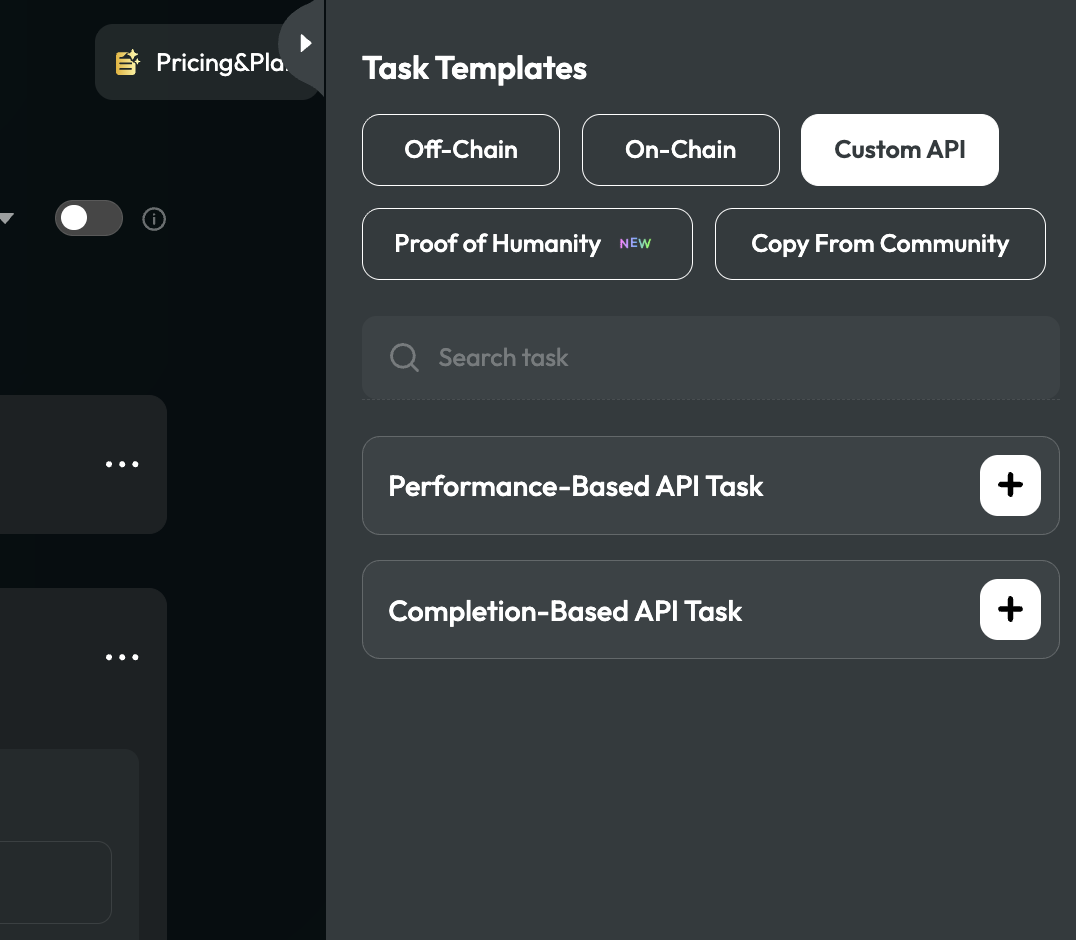
In your campaign or quest, add a task, open the Custom API tab, and choose Completion-Based API Task.
-
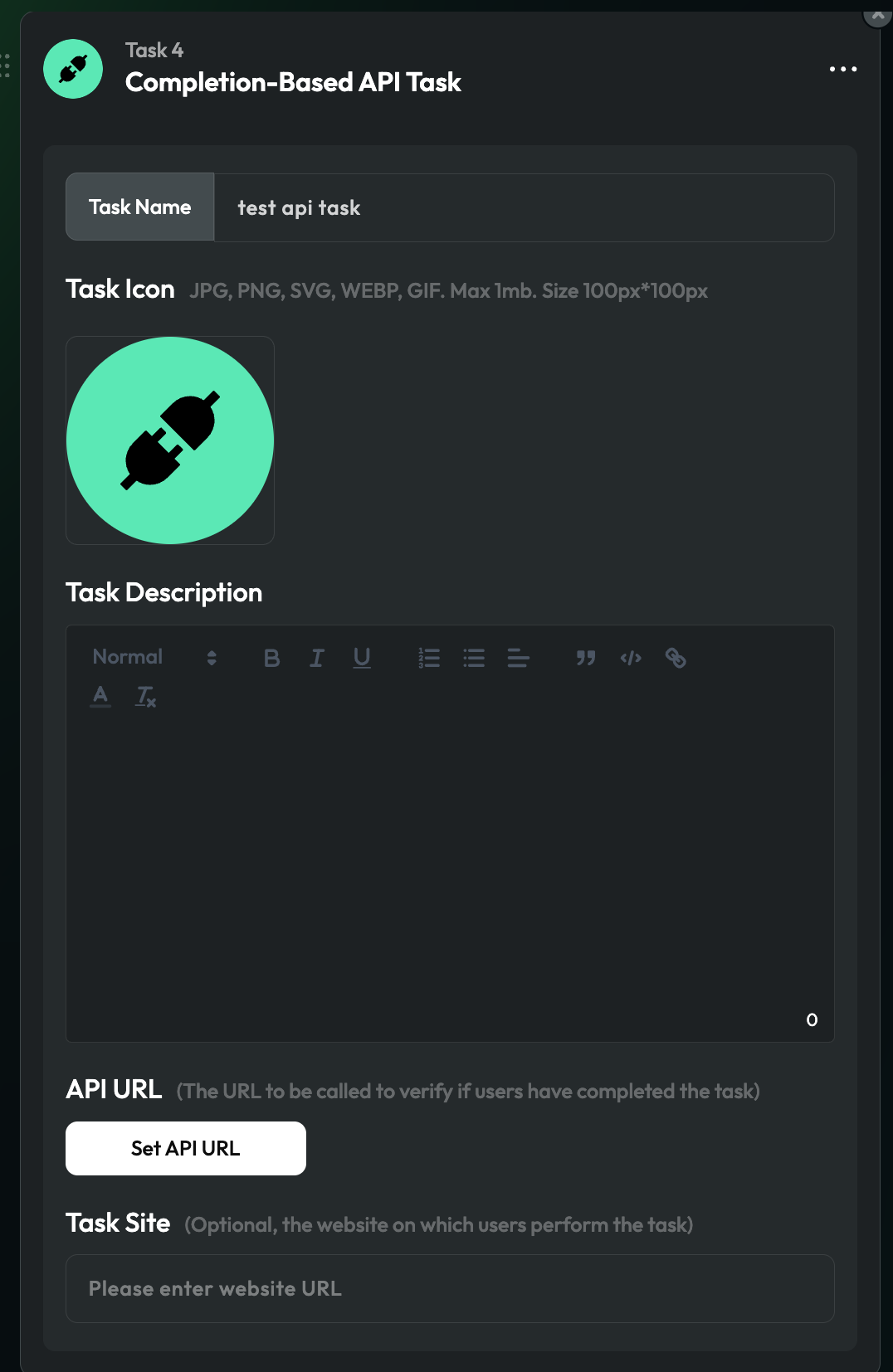
Fill in the task name, icon, and description.
-
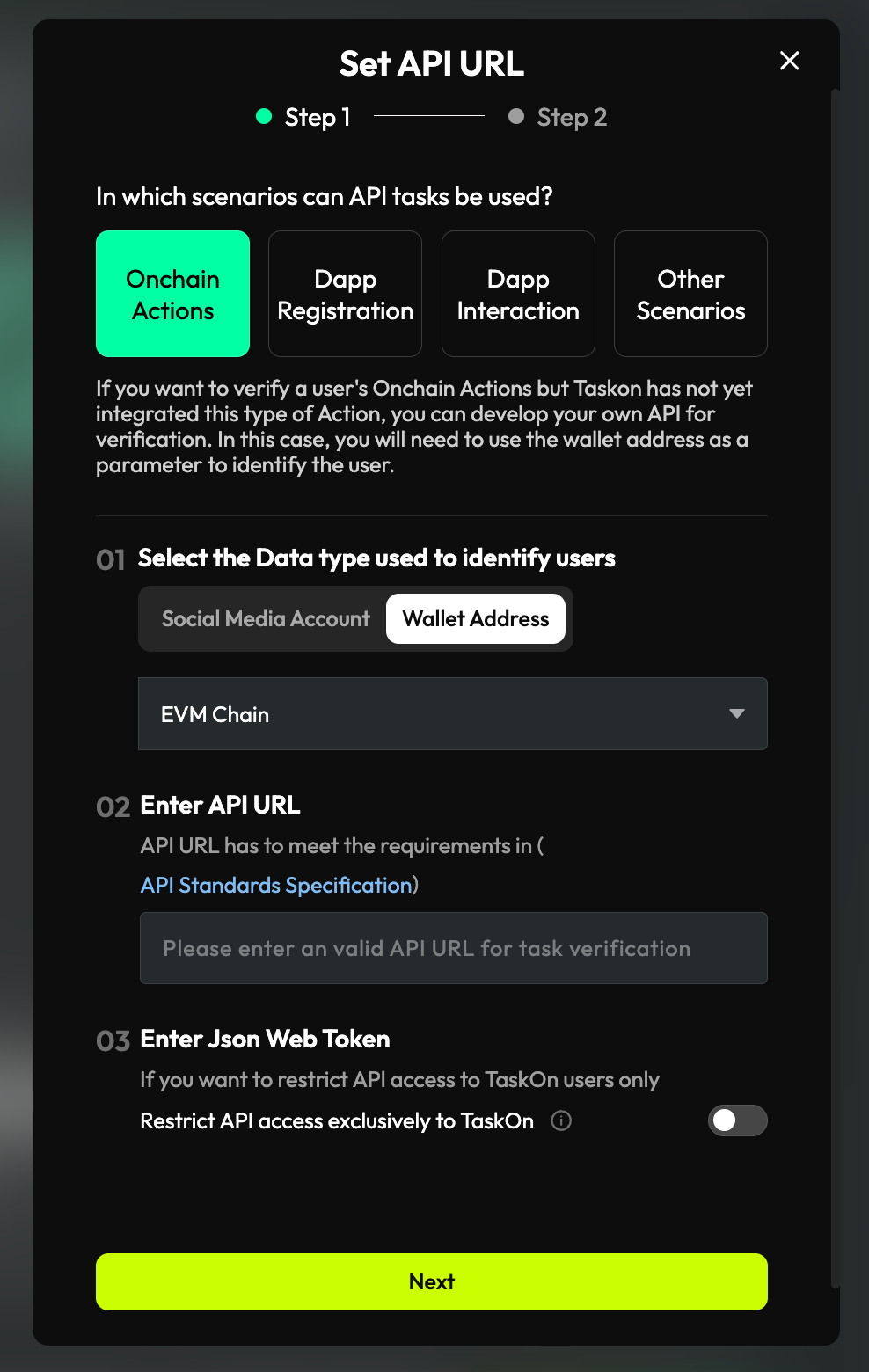
Click Set API URL.
-
Choose how you’ll identify users — Social Media Account or Wallet Address — and pick the specific type or chain.
-
Enter your API URL.
-
If you want to restrict access to TaskOn only, turn on Restrict API access exclusively to TaskOn and set a Bearer Token. Use HTTPS whenever you do this — a token sent over plain HTTP can be read in transit.
-
Click Next to test the connection: enter one account/address that has completed the task and one that hasn’t, then click Verify on each. You’ll see the raw JSON your endpoint returned, so you can confirm it looks right.
-
Once both checks come back correct, click Confirm to save the task.
You can also set a Website link — that’s where the task’s “Start” button sends users before they come back and click Verify.
Troubleshooting
- Verification times out — your endpoint is too slow or unreachable. Test it directly with
curl, check your own logs, and move any heavy lookup work to a cache or background job so you can answer within 10 seconds. - “The API service returns an incorrect status code or an invalid structure” — your endpoint returned something other than
200, or the body isn’t valid JSON matching{"result":{"isValid":true|false}}. Check for stray whitespace, a wrapping array, or a different key name. - Test verification fails on the address that should pass — your endpoint is returning
false(or erroring) for it. Confirm the exact value TaskOn sends matches what your database expects — watch out for case sensitivity on non-EVM chains. - Test verification fails on the address that should fail — the opposite problem: your endpoint is returning
truefor an address that shouldn’t qualify. Make sure your default/fallback response isfalse, nottrue. - It worked in testing but real users can’t verify — remember
networkisn’t sent for live checks (see above). If your endpoint’s logic depends on it, it’ll behave differently in testing than in production.
Security notes
- Treat the Bearer Token as a secret — store it in your environment or secret manager, not in code, and rotate it if it ever leaks.
- The Bearer Token is the only real access control here.
User-Agent: TaskOn-Serveris sent for your own logs/debugging, not as an authentication mechanism — it can be set by anyone. - Serve the endpoint over HTTPS, especially if you’re using a Bearer Token.